
How it works
It just takes a page
You bring an HTML or PHP site, finished or half done. cmsspot connects to it, reads the pages, and turns them into fields on its own. Nothing to install, nothing to tag, nothing to rebuild.
1. Create an account
Sign up with your email. You log in with a link sent to you, so there is no password to remember or lose. The link works once and expires after a short while.
2. Connect the site
Add the server as an SFTP connection: host, user and either an SSH key or a password, and point cmsspot at the folder that holds the website. The credentials are encrypted and never shown again. cmsspot fetches a copy of the files so editing is fast, and writes changes back to the live files when you save.
Any web host with SFTP works, with any folder layout. The only thing cmsspot asks is that the folder is the website's own, not the whole server.
3. cmsspot reads the pages
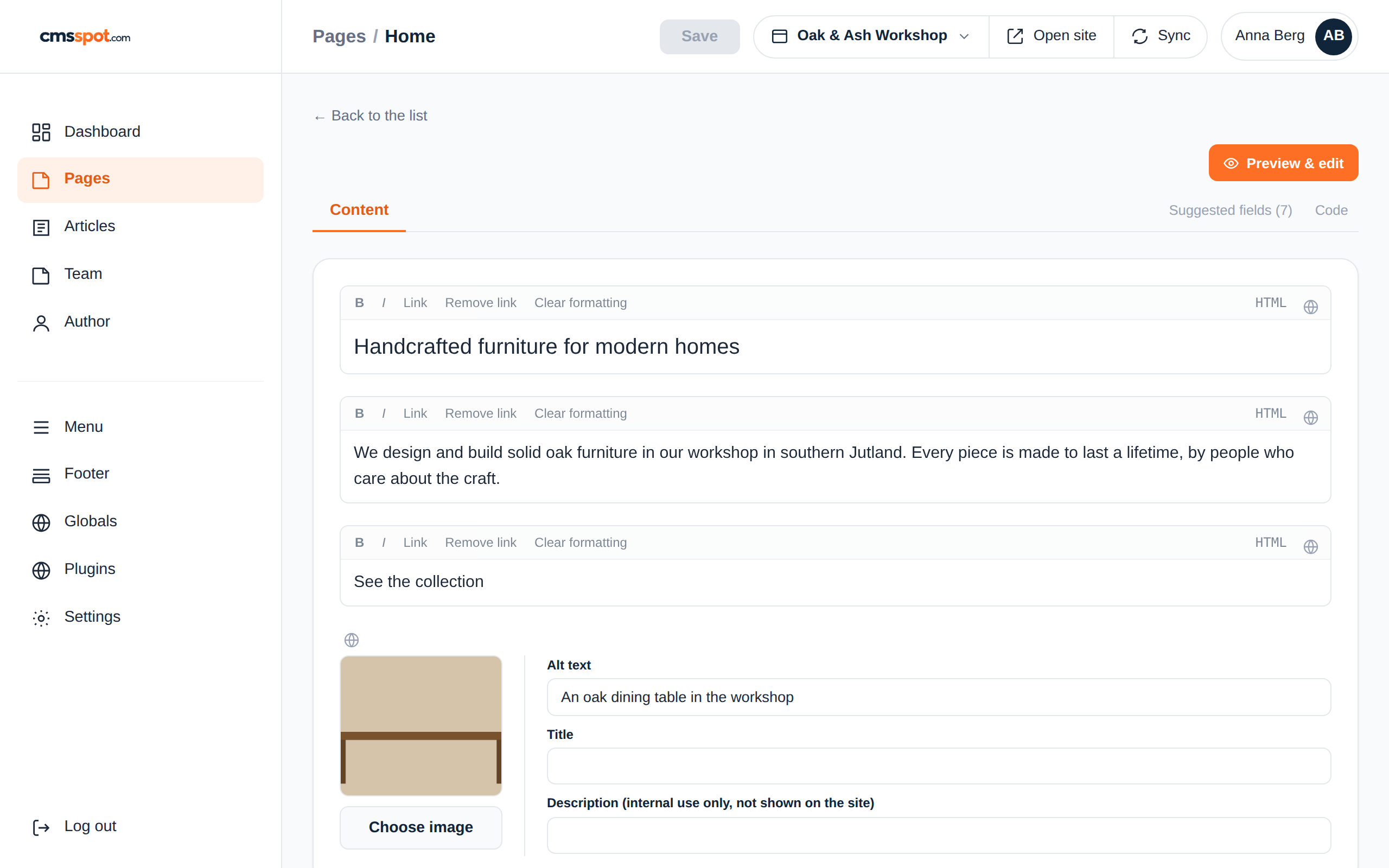
Open a page and it is already fields. Headings, paragraphs, images with their alt text, links, buttons and the menu are found on their own. Text that sits inside PHP is left alone and shown as locked, so a loop or a variable is never overwritten. There is nothing to add to the HTML first.
From file to fields, with nothing added
This is a page from a plain PHP site, opened in cmsspot the first time. Nothing was tagged. The heading, the two paragraphs, the button and the image became fields because that is what they are.
4. Shape it to the site
Every site is built a bit differently, so cmsspot lets you tell it how yours is put together. All of it is settings, none of it is code.
Folders become tabs
Pages and Articles read from the folders you point them at. Add a tab for Team, Cases, Products or anything else that has its own folder. A single file such as index.php can be added to a tab as well, so the front page sits next to the other pages.
Globals
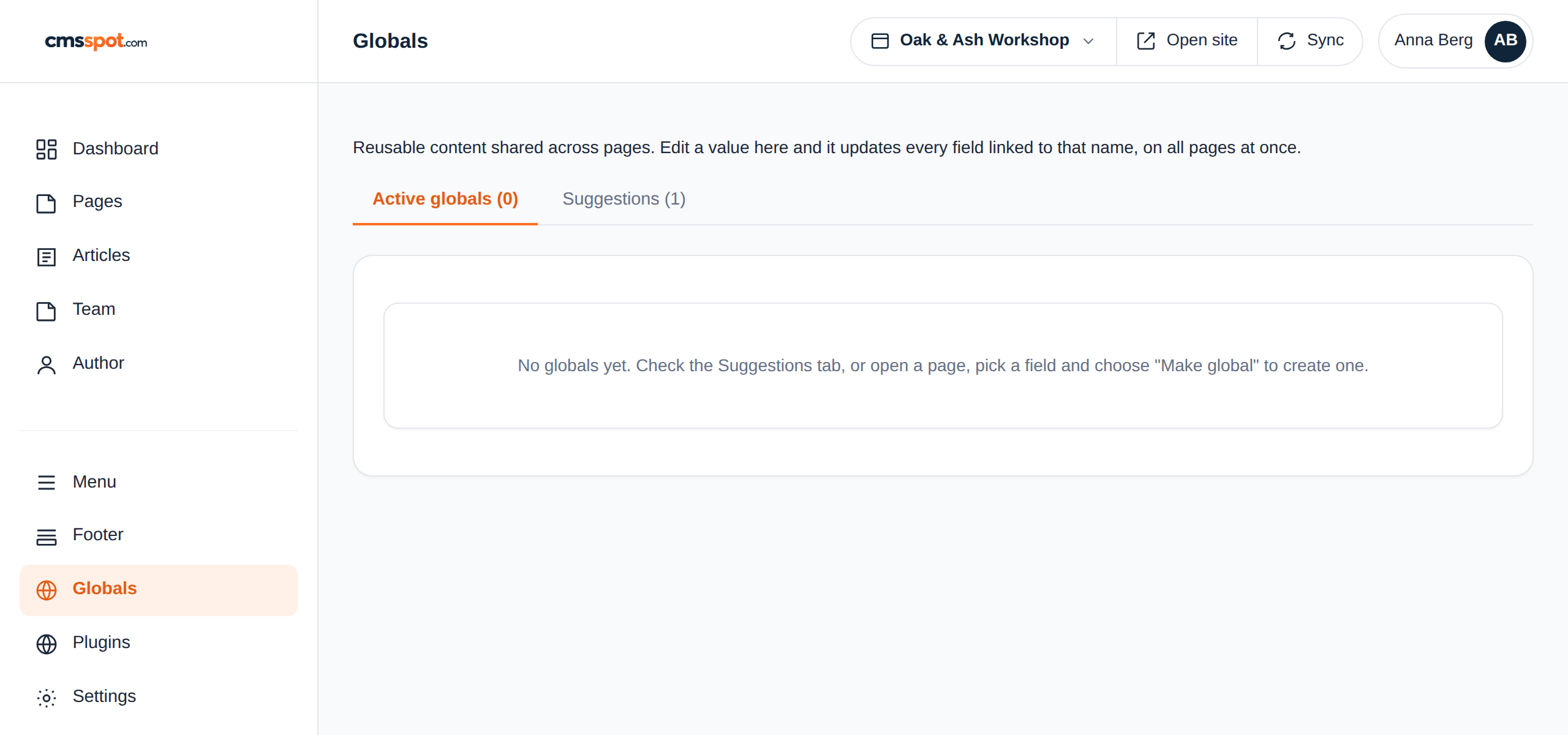
A phone number, an address, opening hours, a tagline: things that repeat across pages. Click the globe on the field and it becomes global. Change it once and every page that shares it is updated in the same save. Links such as tel: and mailto: follow along.
Groups
Three team members, five services, a list of cases: a repeated block becomes a group. The client can add one more, reorder them by dragging, or remove one, and the markup for each item stays exactly as you built it.
Header, footer and menu
If the site keeps its header and footer in include files, cmsspot finds them and gives them their own tabs. The menu is edited as a list of links and written back into the header, so every page gets it.
Titles and descriptions
Many PHP sites set the page title as a variable at the top of the page and print it in the header. cmsspot understands that, edits the variable, and counts the full title with the suffix the way Google shows it. A page without its own description shows you where the shared one comes from.
Shared values in one place
Globals live in their own tab. The client sees the phone number once, not on every page, and cannot forget one.
5. Edit and save
Change a field and press Save. cmsspot checks that the file on the server has not changed since you opened it, takes a backup, and writes the new value into the exact spot in the file. Only that field is written. PHP files are syntax checked first, so a broken page never goes live. Undo brings the last version back.
Prefer to see the page? Preview & edit shows the real page with your design and lets you click into the text where it sits.
6. Hand it over
Invite the client to their site. They get a login link, see only their own site, and edit fields. They never see the server, the connection or the code. If you want an AI assistant to help, create a token on the AI access tab and connect Claude or another assistant to the same site, with the level of access you choose.
How should the HTML be built?
The short version is below; the full project structure with folders, content types, a contact form and the SFTP guides of the most used hosts is on Getting started.
Like a good HTML page. There is no cmsspot way of writing it, and no attribute you have to add. A few habits make the editing cleaner:
- One page per file, with a real heading and paragraphs, not text inside layers of divs.
- Header, footer and menu in include files if it is PHP, so they are shared and get their own tabs.
- The page title and description as variables at the top of the page, printed in the header.
- Images with alt text, sized for the layout.
- Repeated blocks written the same way each time, so they can become a group.
If you want more control, two things help. Add data-key to an element to give the field a fixed, readable name. And the Code tab shows the whole file, so the developer can change the markup in cmsspot itself, with a syntax check before it is saved.
If the site does not look like that yet, it still works. cmsspot reads what is there. You can tidy the markup over time, page by page, and the editing improves with it.
Or let Claude build it
cmsspot has a free build guide as an MCP server. Add it to your own Claude, describe the business, and get a site in plain PHP that follows the habits above and is ready for cmsspot. How to add it, and how to start from a Figma design.
Get started
Connect your first site
Create an account, add the server, open a page. Five minutes from start to the first saved change.